How to record a voice memo without background noise
Get the bottom of the iPhone close to your mouth, put the noise behind you, and keep wind off the microphone. Those three do more than any setting. If the memo still has the room in it, clean it afterwards: Voice Memos’ Enhance Recording first, then a dedicated app if words are still hard to follow.
Why distance matters most
The microphone hears your voice and the room at the same time. Your voice gets much louder as the phone gets closer to your mouth, while the room stays about the same. So halving the distance helps more than any app can, because it changes the recording rather than repairing it.
Before you press record
- Hold the bottom edge near your mouth. That’s where you speak into an iPhone on a call, and it works for memos too. A hand’s width away is plenty. Speak across it, not straight into it, so your breath doesn’t pop.
- Put the noise behind you. Your body blocks some of it. Face away from the traffic, the coffee machine or the speaker, with the phone between you and the quiet side.
- Pick the softest corner. Curtains, sofas, carpets and coats soak up echo. Bare kitchens, stairwells and bathrooms make it worse. A parked car is a surprisingly good booth.
- Switch off what hums. Fans, air conditioning and a running dishwasher are steady noise. If you can turn them off for two minutes, do.
- Keep wind off the microphone. Outdoors, turn your back to the wind and cup a hand loosely around the bottom of the phone. Wind blasts the microphone directly and is among the hardest noises to remove later.
- Test for ten seconds. Record a line, play it back with headphones, then adjust. It’s quicker than re-recording the whole thing.
If the memo still has background noise
Try Enhance Recording first. It’s built into Voice Memos and free. Apple describes it as reducing “background noise and room reverberation with a single tap”. Open the memo in Voice Memos, turn on Enhance Recording, and listen again.
If words are still hard to follow, a dedicated cleanup app can go further. In ARP (our app), you save the memo to Files, add it, and tap ARP on its row. The cleanup runs on the iPhone, and the recording never leaves it. Then switch between Original, Cleaned and Removed. Removed plays back only what was taken out. If you can follow speech in it, the cleanup took too much, and you’ll know. Full steps for a voice memo.
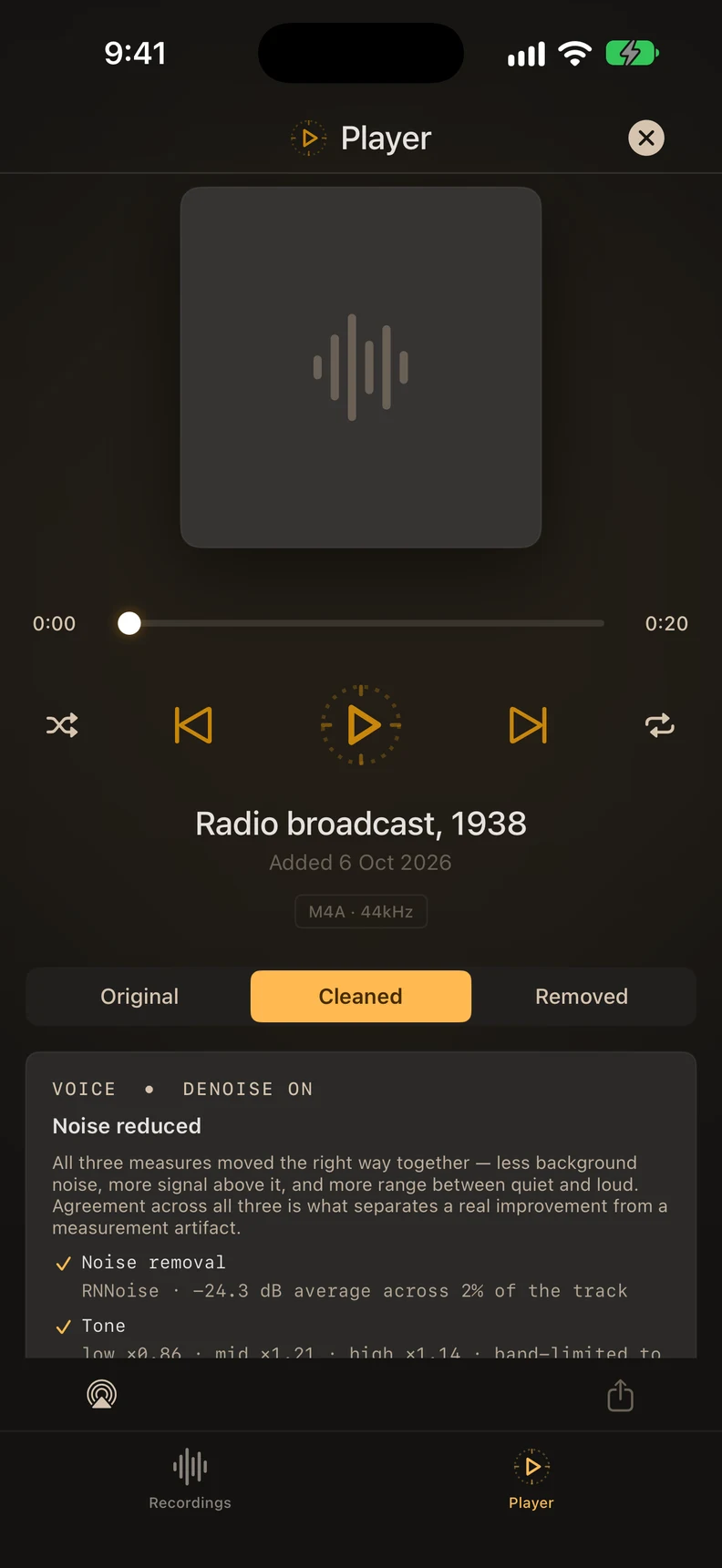
There are other apps too. Here’s how they compare.
What cleanup can’t fix
- Other people talking. Background voices are speech too, so they’re far harder to separate than a fan or traffic.
- Words the noise drowned out. Cleanup removes noise. It can’t bring back a syllable you can’t hear in the original.
- Distortion. If the memo crackles because you were too close or too loud, that is clipping, not noise, and it stays.
That’s why the six steps above are worth the minute they take.
Your recording stays on your device. 10 recordings free; Premium is a one-time purchase.