How to clean up a bad voice recording on iPhone
First work out what’s wrong, because each problem has a different fix and some have none. Background noise is the one cleanup handles well: try Voice Memos’ Enhance Recording, then a dedicated app if the words are still hard to follow. Distortion and other voices mostly stay, so for those, recording again is the real fix.
What’s wrong with it?
Play it back with headphones and match what you hear:
| What you hear | What it is | What helps |
|---|---|---|
| A fan, traffic, a café or a hum behind the voice | Background noise | Cleanup works well. Steps below. |
| A hollow sound, as if you were in a bathroom or a hall | Room echo | Voice Memos’ Enhance Recording. ARP removes background noise and isn’t an echo remover. |
| A clean voice that’s just too quiet | Low level | Raise the level in an audio editor. ARP keeps the cleaned file as loud as the original, so it won’t make it louder. |
| Crackle or buzz on the loud words | Clipping (distortion) | Nothing undoes it. Record again, further from the microphone. |
| Other people talking | Competing speech | Hard for any tool, because it’s speech too. |
| Thumps and roaring outdoors | Wind on the microphone | Among the hardest to remove. Record again with your back to the wind. |
Most bad recordings are background noise, sometimes with a little echo. That’s the case the rest of this guide fixes.
If it’s a voice memo, try Enhance Recording first
Voice Memos has its own fix, and it’s free. Apple describes Enhance Recording as reducing “background noise and room reverberation with a single tap”. Open the memo in Voice Memos, turn on Enhance Recording, and listen again. For a steady hum or a slightly echoey room, that may be all you need.
It’s a single switch, though: there’s no way to hear what it took out, and it only works on memos inside Voice Memos.
If the words are still hard to follow
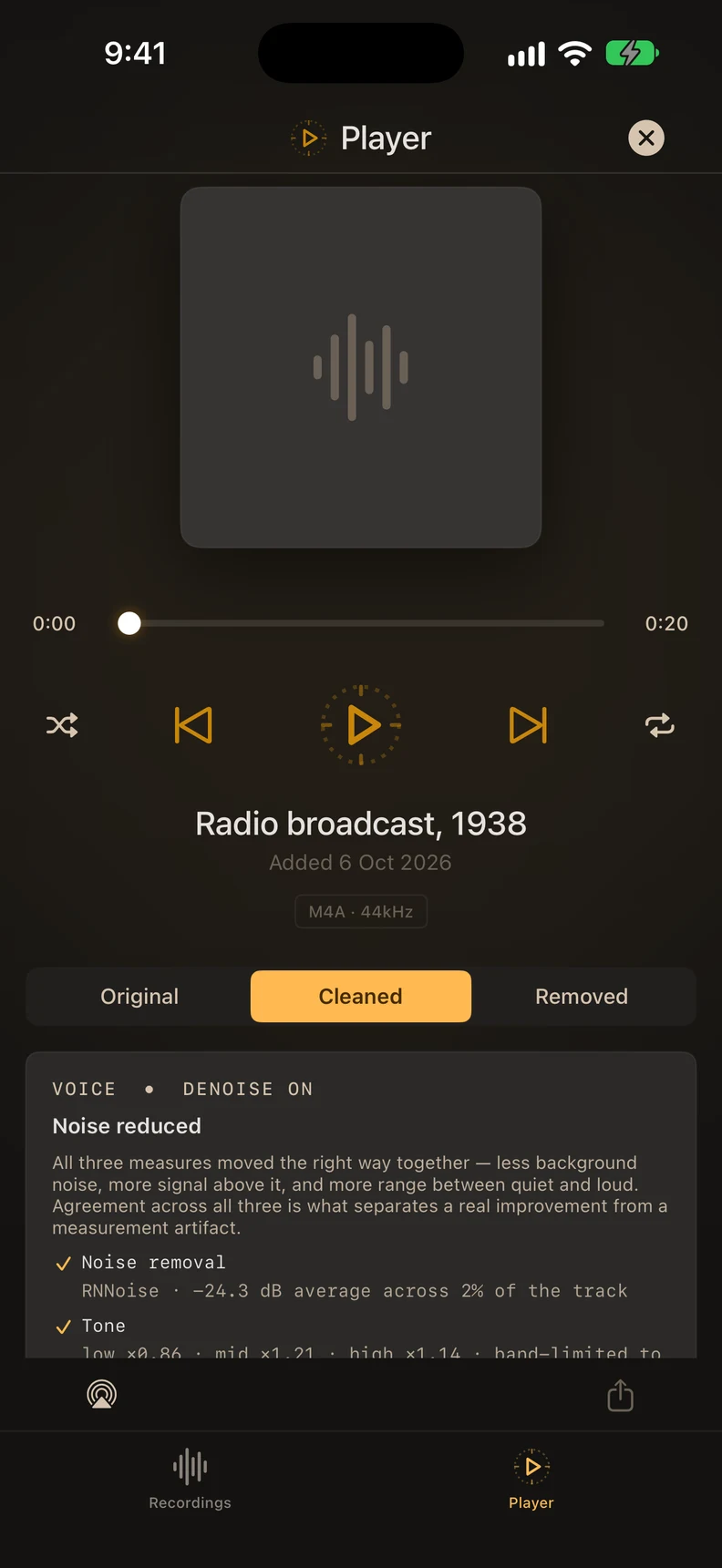
A dedicated cleanup app goes further. In ARP (our app), the cleanup runs on the iPhone and the recording never leaves it:
- Save the recording to Files. From Voice Memos or most recorder apps, use Share → Save to Files. ARP imports M4A, MP3, WAV, AIFF and FLAC audio, up to 3 hours long.
- Add it to ARP. Open ARP, tap Add Recording and pick the file.
- Tap ARP on its row. ARP measures the background first. If the recording is already clean, it says so, changes nothing, and that recording doesn’t count against your 10 free recordings. From ARP 2.2 you can also say “Clean audio with ARP”, or send a recording to ARP from a shortcut, and it starts cleaning.
- Listen three ways. Switch between Original, Cleaned and Removed. Removed plays back only what the cleanup took out. If you can follow words in it, the cleanup took too much, and you’ll know.
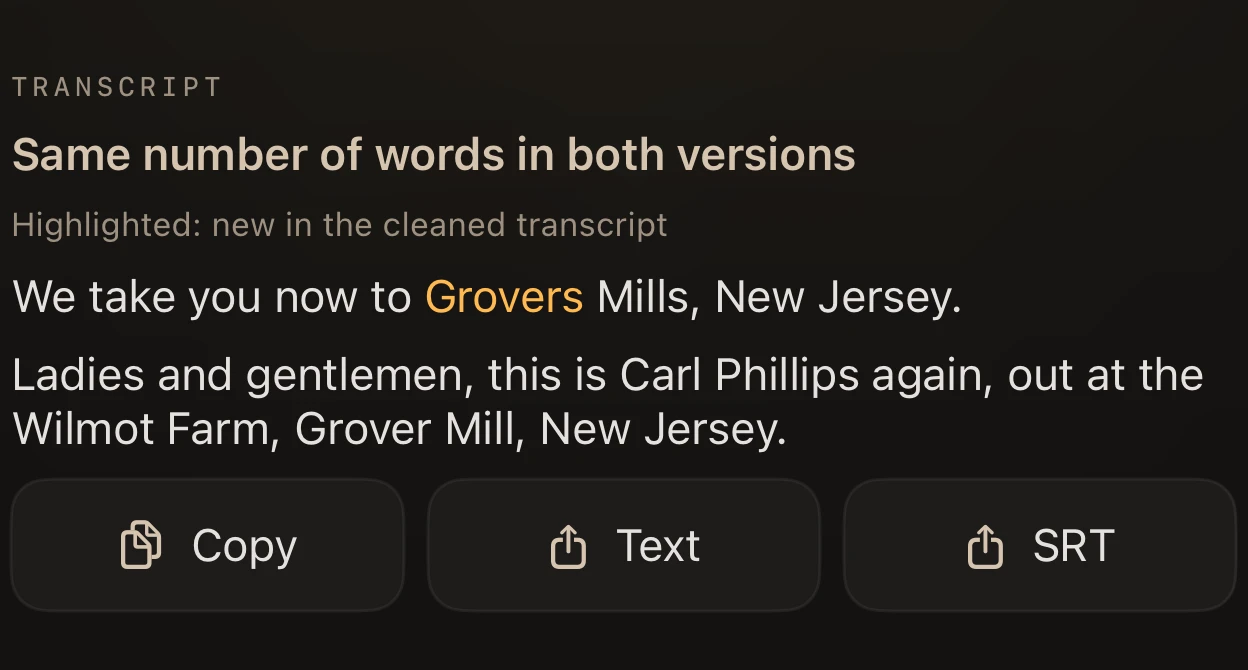
- Read the difference. Transcribe the original and the cleaned version on the device, and copy either one or export it as text or subtitles (TXT or SRT). On a hard-to-hear recording, the cleaned transcript is usually the better one; on a clear one, the two are about the same.
- Keep it. Export M4A free, or 24-bit WAV and AIFF with Premium, at the recording’s own sample rate. The original stays as it was.
The first transcript downloads Apple’s speech model once. No audio is sent with it. Other apps that clean audio on iPhone are compared in best apps to remove background noise on iPhone.
What cleanup can’t give back
- Words the noise drowned out. Cleanup removes noise. It can’t bring back a syllable you can’t hear in the original.
- A muffled voice. If the microphone was covered or in a pocket, the detail never reached it.
- Video. ARP cleans audio files, not the sound inside a video.
If you can record it again, six things before you press record do more than any app.
Your recording stays on your device. 10 recordings free; Premium is a one-time purchase.